
Popular Calculators
Home » Salary Increase Calculator
Salary Increase Calculator
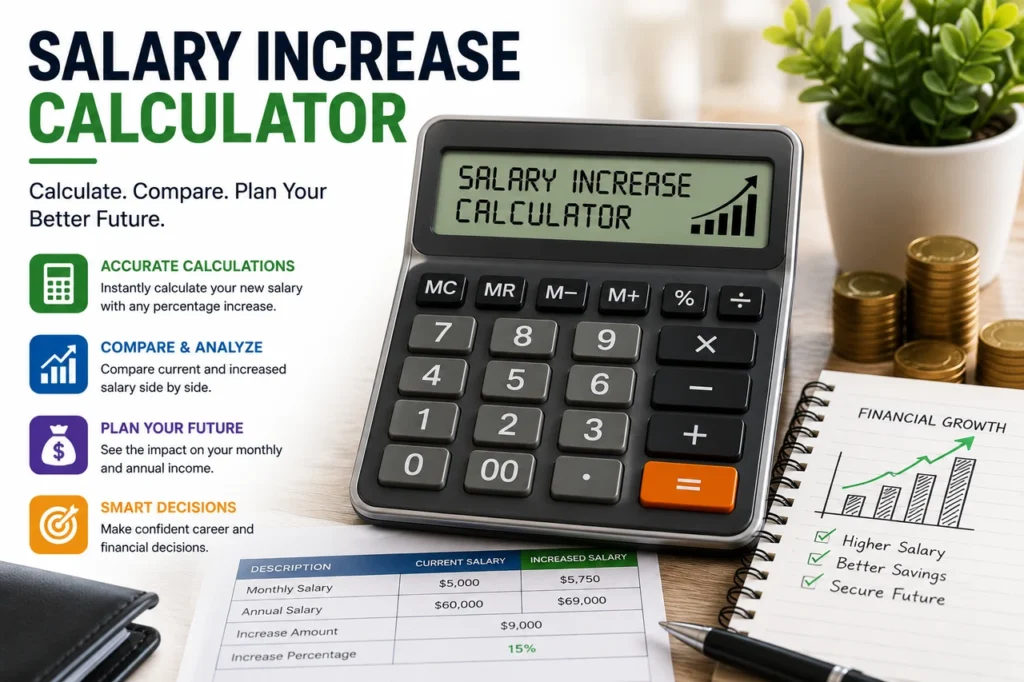
Use this Salary Increase Calculator to estimate new gross pay after a percentage raise or a fixed-amount increase. Enter your current salary, choose Percentage Increase or Fixed Amount Increase, add the increase value, and select Calculate. The tool shows the increase amount, new salary, and percentage change. Keep both money figures in the same currency and pay period. For example, use an annual amount with an annual increase or a monthly amount with a monthly increase. The result does not calculate tax, deductions, bonuses, benefits, inflation, or take-home pay.
Salary Increase Calculator
Increase Amount:
New Salary:
Percentage Increase: %
Salary Increase Calculator for Percentage and Fixed Raises
A Salary Increase Calculator shows how a raise changes a current pay figure. You can enter a percentage increase, such as 5%, or a fixed increase, such as 3,000 per year. The result then reports the money increase, new pay, and equivalent percentage change.
This makes several salary scenarios easier to compare. For example, an employee can review a proposed raise before a meeting, while a job candidate can compare an offer with current pay. Employers can also check simple compensation scenarios. However, the output is arithmetic only and does not assess market value, affordability, tax, employment law, or fairness.
The entered figures must use the same pay period. If Current Salary is annual, the fixed increase must also be annual. If Current Salary is monthly, the fixed increase must be monthly. Therefore, the tool does not automatically convert hourly, weekly, monthly, and annual pay.
How to Use the Salary Increase Calculator
- Enter the current gross salary or pay amount.
- Select Percentage Increase (%) or Fixed Amount Increase.
- Enter the percentage or money amount in Increase Value.
- Select Calculate.
- Review Increase Amount, New Salary, and Percentage Increase.
- Repeat with other values to compare possible outcomes.
Current Salary must be greater than zero. The increase value can be zero or positive. Decimals are accepted. If the entry is missing, invalid, or outside those limits, the calculator asks for valid values.
No currency symbol is required in the fields. Consequently, the same arithmetic can be used for dollars, pounds, euros, dirhams, rupees, or another currency, provided both money values use the same currency. Label the result when saving or sharing it.
Salary Increase Calculator Formulas
Percentage increase formula
When Percentage Increase is selected, the Salary Increase Calculator uses:
Increase amount = current salary × (percentage increase ÷ 100)
New salary = current salary + increase amount
The output repeats the entered percentage to two decimal places.
Fixed amount increase formula
When Fixed Amount Increase is selected, the tool uses:
New salary = current salary + fixed increase
Percentage increase = fixed increase ÷ current salary × 100
Money results display two decimal places, while large values use local number grouping when supported by the browser. Still, the tool does not add a currency symbol because the fields are currency-neutral.
Percentage Salary Increase Example
Assume current annual salary is 50,000 and the offered raise is 6%. The increase amount is 50,000 × 0.06, which equals 3,000. Therefore, the new annual salary is 53,000.
50,000 × 6% = 3,000 increase
50,000 + 3,000 = 53,000 new salary
If the same figures represent monthly pay, the mathematics is still valid, but the result is monthly. Context matters. Consequently, label the pay period whenever you record the output.
Fixed Pay Increase Example
Assume current annual salary is 48,000 and the fixed increase is 4,800. The new salary is 52,800. The equivalent percentage increase is 4,800 ÷ 48,000 × 100, which equals 10%.
This option is helpful when an employer states the raise as a money amount. Instead of manually finding its percentage, enter the two values and let the tool provide both views.
Monthly and Annual Salary Examples
Annual salary with a percentage raise
An annual salary of 72,000 receives a 4.5% increase. The annual raise is 3,240, and new annual salary is 75,240. To find a simple monthly gross average afterward, divide 75,240 by 12, which equals 6,270.
The current form does not perform that monthly conversion. Therefore, calculate it separately and remember that actual payroll may use pay periods rather than one-twelfth of annual pay.
Monthly salary with a fixed increase
A monthly salary of 5,000 receives a fixed monthly increase of 350. The new monthly salary is 5,350. The equivalent percentage increase is 7%.
Do not enter 5,000 monthly salary with a 4,200 annual increase. First, convert both figures to annual or both to monthly. Otherwise, the result mixes periods and has no useful meaning.
Salary, Wages, and Pay Periods
Salary often refers to a fixed annual or monthly amount, while wages may be stated hourly. This tool can add a percentage or fixed amount to any positive pay figure, but it does not calculate hours, overtime, shift premiums, commissions, or unpaid time.
For hourly pay, enter the current hourly rate and an hourly fixed increase. For example, an hourly rate of 20 plus a fixed increase of 1.50 produces 21.50 and a 7.5% increase. However, that result does not show annual earnings because annual hours may vary.
Weekly, biweekly, semimonthly, and monthly payroll schedules also differ. A year normally contains 52 weeks, about 26 biweekly pay periods, 24 semimonthly periods, and 12 months. Nevertheless, employer payroll rules and calendar timing can affect an individual check.
Gross Salary Versus Take-Home Pay
The Salary Increase Calculator works with the gross figure entered. Take-home pay is the amount remaining after applicable taxes, social contributions, insurance, retirement contributions, garnishments, and other deductions. Therefore, a 5% gross raise does not always create a 5% increase in net pay.
Tax systems can use brackets, allowances, credits, thresholds, and regional rules. Benefits deductions may be fixed or percentage-based. In addition, a raise can change eligibility or contribution amounts. This page does not collect the information needed to calculate those effects.
Use the displayed new salary as a starting point. Then, consult an official payroll calculator, tax authority, payslip estimate, or qualified professional for net-pay questions in the relevant location.
Raises, Bonuses, and Benefits Are Not the Same
A base-salary increase changes ongoing contractual pay, subject to the employment terms. A bonus may be one-time, discretionary, performance-based, or conditional. Consequently, adding a bonus to base salary can overstate recurring compensation.
Benefits also carry value but may not appear in salary. Health coverage, retirement contributions, paid leave, allowances, stock awards, training, flexible work, and other items can affect total compensation. Still, they should be compared separately rather than typed into the salary field without explanation.
When comparing job offers, create a table for base pay, guaranteed cash, variable pay, employer contributions, leave, work expenses, location, schedule, and growth. The calculator can handle the base-pay increase, while the table captures the broader package.
Using a Pay Raise Calculator for Negotiation
Before a salary discussion, calculate several specific scenarios. For example, compare 4%, 6%, and 8% increases rather than saying only that you want “more.” Then, connect the request with role scope, results, skills, market data, and responsibilities.
The U.S. Department of Labor’s 2026 salary-negotiation guide recommends using wage data, including information from the Bureau of Labor Statistics, when researching pay. Its salary negotiation guide provides a structured reference. For other countries, use the appropriate national statistics and local market sources.
Keep the discussion professional and evidence-based. Moreover, consider timing, budget cycles, performance reviews, promotion requirements, and the employer’s compensation structure. The calculator supplies numbers, but the conversation depends on context.
Comparing a Raise With Inflation
A nominal salary increase raises the number on the payslip. A real-pay change considers how purchasing power moved after inflation. Therefore, a 4% raise during a period of 5% inflation may still represent a decline in broad purchasing power, although personal spending patterns differ.
Do not subtract inflation blindly when comparing different countries, cities, or periods. Consumer-price indexes use defined baskets, populations, and methods. In addition, taxes and personal expenses may change differently.
The U.S. Bureau of Labor Statistics offers an official CPI Inflation Calculator for U.S. dollar purchasing-power comparisons. Use the official statistical source for the country and time period that match your salary.
Sequential Raises and Compounding
Two percentage raises are normally applied sequentially to the updated salary. Therefore, a 5% raise followed later by another 5% raise is not exactly a 10% total increase from the original salary.
Assume salary is 50,000. After the first 5% raise, it becomes 52,500. A second 5% raise adds 2,625, producing 55,125. The total increase from the original is 5,125, or 10.25%.
To model sequential raises with the current tool, calculate the first raise, then enter the new salary as Current Salary for the next calculation. Keep a record of effective dates because a later raise may apply for only part of a year.
Prorated Raises and Effective Dates
A new annual salary may begin partway through the year. In that case, the full annual increase is not the extra cash received during the current calendar or fiscal year. You need the old rate for one period and the new rate for the remaining period.
For example, an annual raise of 6,000 effective halfway through a simple 12-month year contributes about 3,000 of additional gross salary during that year, before payroll timing. However, exact proration depends on the effective date, pay frequency, working days, and employer method.
The Salary Increase Calculator does not ask for an effective date. Consequently, it shows the new rate and full-period increase, not prorated earnings.
Comparing Job Offers
When an offer lists a new salary, you can find the percentage change manually by selecting Fixed Amount Increase and entering the difference between new and current pay. For instance, moving from 60,000 to 66,000 is a fixed increase of 6,000, which equals 10%.
However, location and work arrangement can change expenses. Commuting, housing, tax, childcare, equipment, and unpaid travel can affect the practical value of an offer. In addition, longer hours may change effective hourly compensation.
Review guaranteed and variable pay separately. A higher potential bonus is not the same as higher base salary. Likewise, a signing bonus may not repeat in later years.
How to Document a Salary Increase Comparison
Save enough information for another person to understand the result. Record current pay, pay period, currency, increase type, increase value, calculated increase, new pay, and effective date. In addition, note whether the figures are gross, taxable, pensionable, guaranteed, or conditional under the applicable employment terms.
A simple comparison table can include current base pay, proposed base pay, percentage change, fixed change, recurring allowances, target bonus, employer contributions, paid leave, scheduled hours, and work location. Keep one-time payments in a separate row. Therefore, a signing bonus or retention payment does not appear to be part of permanent salary.
If two offers use different currencies, choose a stated exchange rate and date, but keep the original figures as well. Exchange rates move, so one converted number can become outdated. Likewise, if one role is hourly and another is salaried, estimate annual working hours and unpaid time carefully before comparing them.
Finally, retain the written offer, review letter, or payroll notice for future reference. The calculator result can help you check the arithmetic, but the official document controls the actual amount, conditions, and effective date.
Common Salary Increase Calculation Mistakes
- Mixing pay periods: annual salary and monthly increase cannot be added directly.
- Mixing currencies: convert both money values to one currency first.
- Using net pay with a gross increase: compare figures on the same basis.
- Adding percentages instead of compounding: sequential raises use the updated salary.
- Treating a bonus as permanent salary: separate one-time and recurring pay.
- Ignoring the effective date: a midyear raise does not apply to the full current year.
- Assuming inflation equals personal costs: broad indexes do not match every household.
- Forgetting benefits and hours: total compensation and workload affect comparisons.
Another error is calculating the raise percentage by dividing the increase by the new salary. Percentage increase uses the original current salary as the base. Dividing by new salary produces a different percentage.
Limits of This Salary Increase Calculator
The Salary Increase Calculator does not convert pay periods, estimate annual hours, or calculate overtime. It also excludes tax, deductions, benefits, bonuses, commissions, exchange rates, inflation adjustment, and prorated timing.
The output does not recommend a raise percentage or predict an employer’s decision. It cannot assess performance, internal equity, pay bands, market rate, discrimination, minimum wage, collective agreements, or employment law.
Use it for clear arithmetic. For payroll, tax, legal, or compensation-policy decisions, use the official rules and qualified advice that apply to the employee and location.
Related Finance and Planning Tools
You can browse all calculator pages for other tools covering finance, marketing, health, education, and construction. Business owners reviewing product pricing can also use the selling price and margin calculator.
Salary increase and business markup are different percentage problems. Therefore, use the correct base in each calculation and label the result.
Frequently Asked Questions About the Salary Increase Calculator
How do I calculate a percentage pay raise?
Multiply current salary by the percentage divided by 100 to find the increase. Then, add that amount to current salary.
How do I find the percentage of a fixed raise?
Divide the fixed increase by current salary and multiply by 100. The calculator performs this step when Fixed Amount Increase is selected.
Can I use monthly salary?
Yes. Use a monthly fixed increase with it, or apply a percentage. The output remains monthly. Do not mix a monthly current salary with an annual fixed increase.
Can I use hourly pay?
Yes, for a simple rate change. Enter the hourly rate and either a percentage or hourly fixed increase. The tool does not calculate hours, overtime, or annual earnings.
Does the result show take-home pay?
No. It shows gross arithmetic based on the entered figure. Taxes, insurance, retirement, and other deductions require a separate payroll calculation.
Does it include bonuses?
No. Add only a bonus that truly forms part of the pay figure you intend to compare, and label it clearly. Base salary and variable compensation are usually better reviewed separately.
How do I calculate two raises?
Calculate the first raise, then use its new salary as the current salary for the second calculation. This accounts for compounding.
Can the calculator account for inflation?
No. Compare the nominal raise with a relevant official price index separately. Remember that personal expenses may not move exactly like the index.
Is a higher salary always a better offer?
Not necessarily. Compare hours, location, tax, benefits, bonus conditions, job security, responsibilities, expenses, leave, and development opportunities alongside base pay.
Final Note on Calculating a Pay Raise
The Salary Increase Calculator provides a direct comparison between current pay and a percentage or fixed increase. Keep currency, pay period, and gross-versus-net basis consistent. Then, review taxes, deductions, benefits, effective date, inflation, workload, and market data separately before making a career or compensation decision.